---
title: How to connect OneLogin to Ronspot
description: Integrating OneLogin with Ronspot enables seamless Single Sign-On (SSO), improving both security and user management across your organization.
---
[Skip to content](https://help.ronspot.co/how-to-connect-onelogin-to-ronspot#main-content)
[Open support ticket](https://help.ronspot.co/kb-tickets/new?hsLang=en) [Track my tickets](https://ronspot.co/customer-portal?hsLang=en)
[](https://ronspotflexwork.com/)
- [Platform](https://ronspotflexwork.com/platform/)
Show submenu for Platform
- [Parking Management System](https://ronspotflexwork.com/office-parking-management/)
- [Desk Booking System](https://ronspotflexwork.com/desk-booking-system/)
- [Meeting Room Booking System](https://ronspotflexwork.com/meeting-room-booking-system/)
- [Workplace Analytics](https://ronspotflexwork.com/workplace-analytics/)
- [Integrations](https://ronspotflexwork.com/integrations/)
- Solutions
Show submenu for Solutions
- [Employee Experience](https://ronspotflexwork.com/employee-experience/)
- [Workplace Operations](https://ronspotflexwork.com/workplace-operations/)
- [Space Planning](https://ronspotflexwork.com/space-management/)
- [Customer Case Studies](https://ronspotflexwork.com/case-studies/)
- [Pricing](https://ronspotflexwork.com/pricing/)
- Resources
Show submenu for Resources
- [Help Centre](https://help.ronspot.co/)
- [Product Updates](https://ronspotflexwork.com/feature-releases/)
- [System Status](https://ronspotflexwork.com/system-status/)
- [Contact](https://ronspotflexwork.com/contact-us/)
Open main navigation
Close main navigation
- [Platform](https://ronspotflexwork.com/platform/)
Show submenu for Platform
- [Parking Management System](https://ronspotflexwork.com/office-parking-management/)
- [Desk Booking System](https://ronspotflexwork.com/desk-booking-system/)
- [Meeting Room Booking System](https://ronspotflexwork.com/meeting-room-booking-system/)
- [Workplace Analytics](https://ronspotflexwork.com/workplace-analytics/)
- [Integrations](https://ronspotflexwork.com/integrations/)
- Solutions
Show submenu for Solutions
- [Employee Experience](https://ronspotflexwork.com/employee-experience/)
- [Workplace Operations](https://ronspotflexwork.com/workplace-operations/)
- [Space Planning](https://ronspotflexwork.com/space-management/)
- [Customer Case Studies](https://ronspotflexwork.com/case-studies/)
- [Pricing](https://ronspotflexwork.com/pricing/)
- Resources
Show submenu for Resources
- [Help Centre](https://help.ronspot.co/)
- [Product Updates](https://ronspotflexwork.com/feature-releases/)
- [System Status](https://ronspotflexwork.com/system-status/)
- [Contact](https://ronspotflexwork.com/contact-us/)
- [Open support ticket](https://help.ronspot.co/kb-tickets/new)
- [Track my tickets](https://ronspot.co/customer-portal)
- [Book a Demo](https://ronspotflexwork.com/book-a-demo/)
[Book a Demo](https://ronspotflexwork.com/book-a-demo/)
Need help with Ronspot?
- There are no suggestions because the search field is empty.
1. [Help Centre](https://help.ronspot.co/?hsLang=en)
2. [Integrations](https://help.ronspot.co/integrations?hsLang=en)
3. [Single Sign-On](https://help.ronspot.co/integrations?hsLang=en#single-sign-on)
December 3, 2025
# How to connect OneLogin to Ronspot
## Integrating OneLogin with Ronspot enables seamless Single Sign-On (SSO), improving both security and user management across your organization.
---
#### Step 1: Log in to the Ronspot admin panel
1. Open your web browser and navigate to the Ronspot admin portal.
2. Enter your administrator credentials to sign in.
---
#### Step 2: Go to ‘Users \> Login Methods’
1. In the left-hand menu, go to `Users > Login methods`.
---
#### Step 3: Click on the ‘OneLogin’ icon
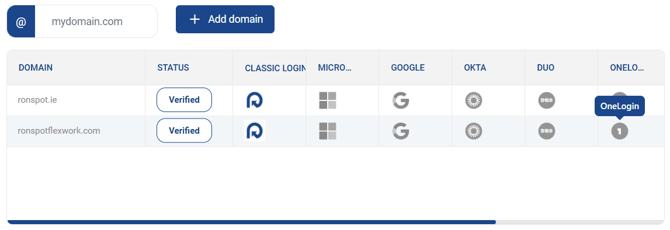
- Locate your domain name in the list displayed.
- Click the **OneLogin** icon in the OneLogin column next to your domain.
If your domain is missing, click `Add domain` and create it first.
---
#### Step 4: Copy the required URLs
Scroll down to view and copy the four URLs provided:
- **Single sign-on URL**
- **Recipient URL**
- **Destination URI**
- **Audience URI**
**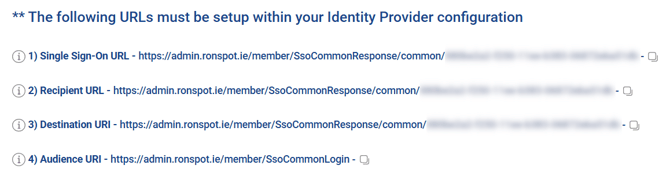**
These URLs are specific to your Ronspot account and will be used later in **Step 10**.
---
#### Step 5: Log in to OneLogin
1. Go to the [OneLogin website](https://app.onelogin.com/login).
2. Sign in using your company credentials.
---
#### Step 6: Go to ‘Applications’ → ‘Applications’
1. Click on `Applications` in the top navigation bar.
2. A submenu will appear—click `Applications` again.

---
#### Step 7: Create a new application
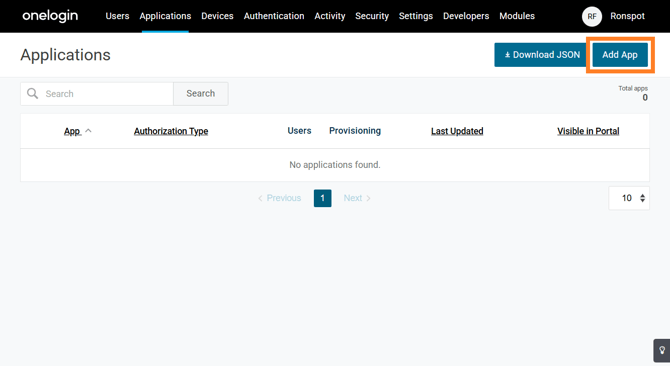
- Click the `Add App` button located in the upper-right corner.
---
#### Step 8: Search for ‘SAML Custom Connector (Advanced)’
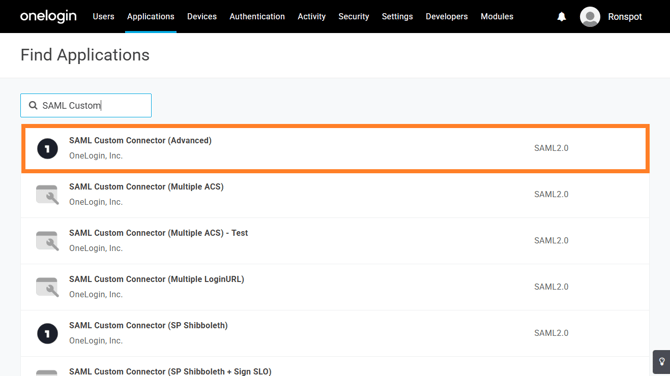
- In the search bar, type **SAML Custom Connector (Advanced)**.
- When it appears, select it to open the configuration screen.
---
#### Step 9: Configure the SAML application
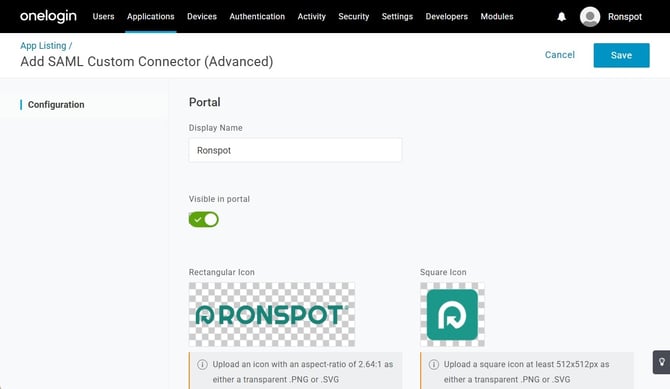
1. **Display Name:** Choose a clear name (e.g., *Ronspot*).
2. **Rectangular Logo** (optional):Upload the Ronspot rectangular logo.****
3. **Square Logo** (optional): Upload the square version.
4. Click on `Save` to proceed.
---
#### Step 10: Configure the app
- Go to the `Configuration` tab in and enter:
- **Audience (EntityID):** `Ronspot`
- **Recipient:** Paste the `Recipient URL` from **Step 4**
- **ACS (Consumer) URL Validator:** Paste the `Single Sign-On URL` from **Step 4**
- **ACS (Consumer) URL:** Paste the `Destination URI` from **Step 4**
- **Login URL:** Paste the `Audience URI` from **Step 4**
- **SAML Initiator:** Select `Service Provider`
- Click `Save`

---
#### Step 11: Copy the SAML values
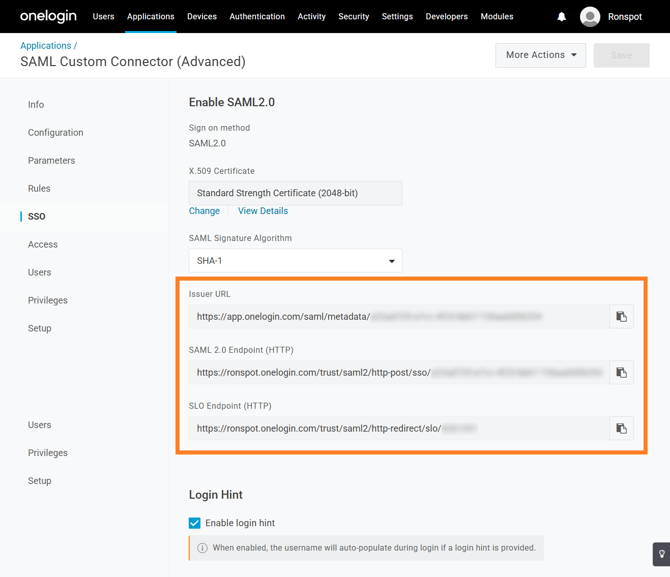
- Navigate to the `SSO` tab and copy the following:
- **Issuer URL**
- **SAML 2.0 Endpoint (HTTP)**
- **SLO Endpoint (HTTP)**
Copy these values and store them in a notepad. You will use them in **Step 20**.
---
#### Step 12: Copy the X.509 Certificate
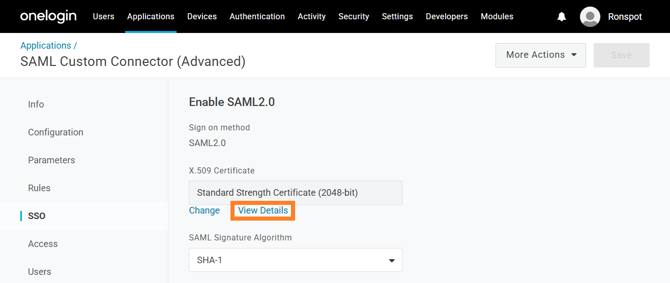
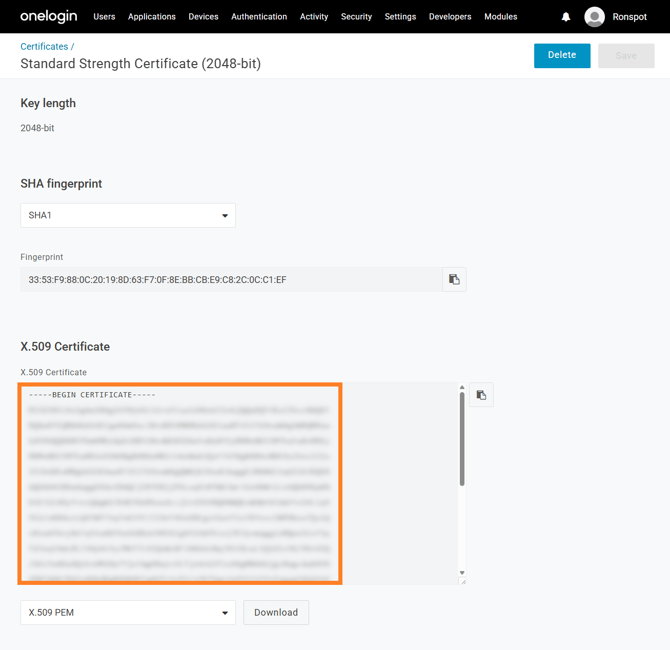
- Still on the `SSO` tab, under **X.509 Certificate**, click `View details`.
- Copy the certificate to your clipboard and save it.
Copy the certificate and store it in a notepad. You will use it in **Step 20**.
---
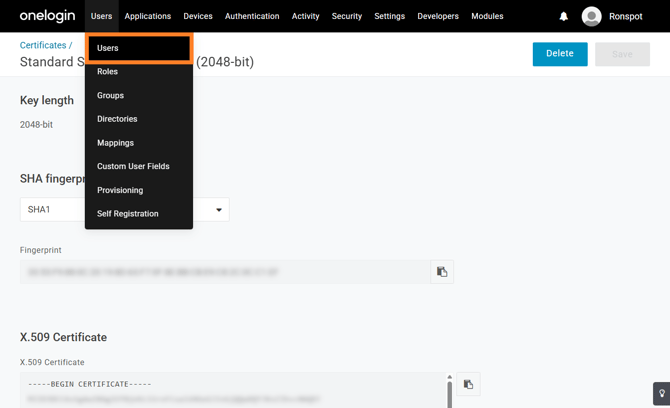
#### Step 13: Go to ‘Applications’ → ‘Users’’
1. Click on `Users` in the top navigation bar.
2. A submenu will appear—click `Users` again.
#### 
---
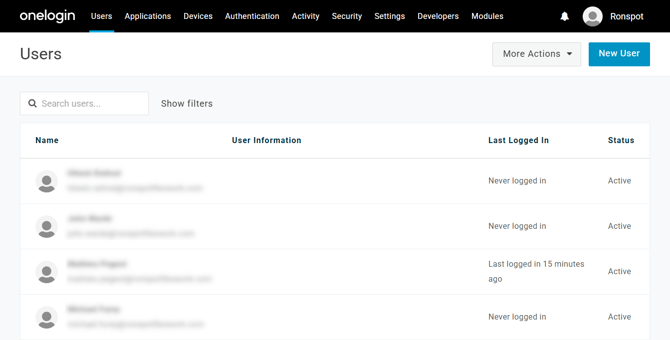
#### Step 14: Select a user
- Select a user from the user list.
---
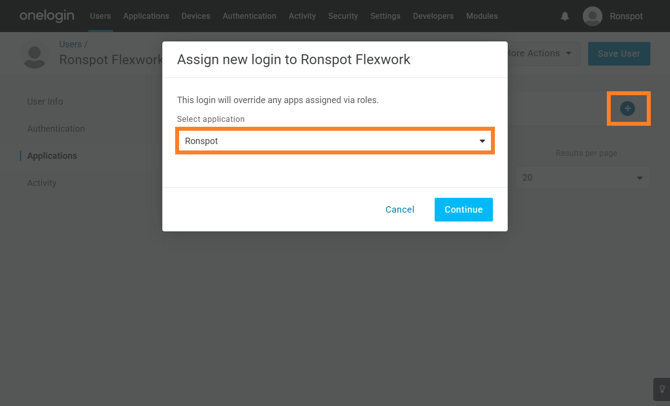
#### Step 15: Assign the new application to a user
- In the **Application** section of the user profile, click the `+` button.
- From the list, choose the application name you created in **Step 9**.
- Click `Continue`.
---
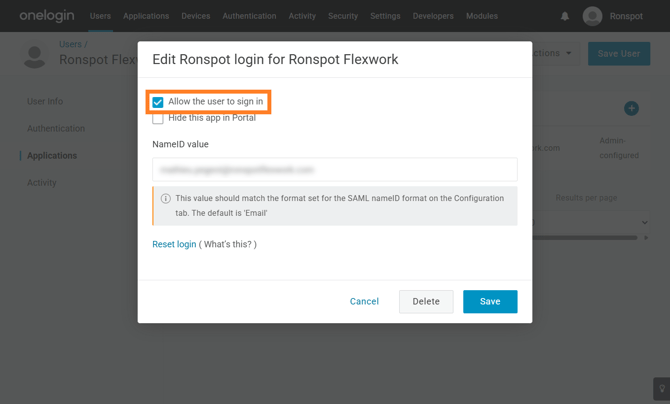
#### Step 16: Configure application access
- On the next screen, make sure the option **“Allow the user to sign in”** is checked.
- Click `Save` to confirm.
---
#### Step 17: Repeat for additional users
Repeat **Steps 15 and 16** for any other employees who need access to the application.
---
#### Step 18: Return to the Ronspot admin panel
1. Go back to the Ronspot admin portal.
2. In the left-hand menu, go to `Users > Login methods`
---
#### Step 19: Select the OneLogin integration
1. Find your domain name in the list
2. Then click the **OneLogin** icon.

---
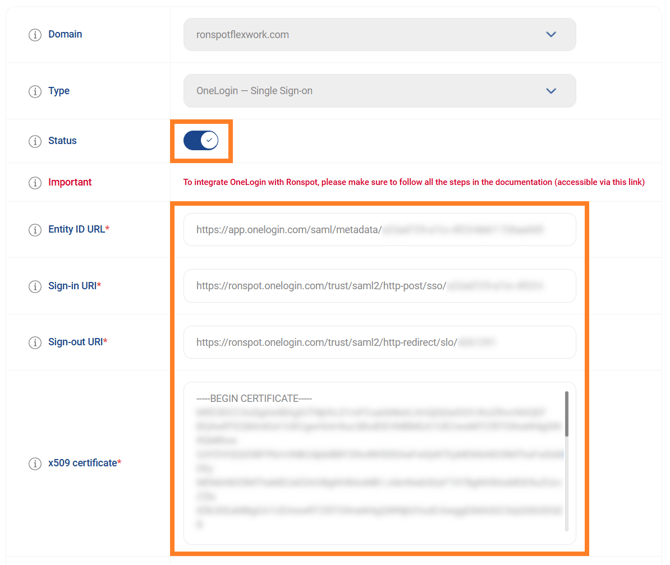
#### Step 20: Activate OneLogin and paste the values
1. Switch the status from **Inactive** to **Active** (the toggle will turn blue).
2. Fill in the following fields using the values copied from **Steps 11 and 12**:
- `Entity ID URL`**:** Paste the **Issuer URL**
- `Sign-in URI`**:** Paste the **SAML 2.0 Endpoint (HTTP).**
- `Sign-out URI:` Paste the **SLO Endpoint (HTTP)**.
- `X509 certificate`**:** Paste the **X.509 Certificate**.
3. Click `Save` to complete the setup.
---
### Conclusion
You’ve now successfully integrated **OneLogin** with **Ronspot**, enabling streamlined SSO authentication for your users. This setup enhances both security and ease of access within your organization.
If you encounter any issues, consult the official documentation from **OneLogin** or **Ronspot**, or reach out to their support teams for assistance.
- [User Guide](https://help.ronspot.co/user-guide?hsLang=en#main-content)
- [Quick Start](https://help.ronspot.co/user-guide?hsLang=en#quick-start)
- [Core Features](https://help.ronspot.co/user-guide?hsLang=en#core-features)
- [Advanced Features](https://help.ronspot.co/user-guide?hsLang=en#advanced-features)
- [Meetings](https://help.ronspot.co/user-guide?hsLang=en#meetings)
- [Troubleshooting](https://help.ronspot.co/user-guide?hsLang=en#troubleshooting)
- [Account Setup](https://help.ronspot.co/account-setup?hsLang=en#main-content)
- [Map Configuration](https://help.ronspot.co/account-setup?hsLang=en#map-configuration)
- [Space Management](https://help.ronspot.co/account-setup?hsLang=en#space-management)
- [Account Customisation](https://help.ronspot.co/account-setup?hsLang=en#account-customisation)
- [User Management](https://help.ronspot.co/user-management?hsLang=en#main-content)
- [User Authentication](https://help.ronspot.co/user-management?hsLang=en#user-authentication)
- [Managing Users](https://help.ronspot.co/user-management?hsLang=en#managing-users)
- [User Permissions](https://help.ronspot.co/user-management?hsLang=en#user-permissions)
- [Rules & Priorities](https://help.ronspot.co/rules-priorities?hsLang=en#main-content)
- [Confirmation & Auto-Cancellation](https://help.ronspot.co/rules-priorities?hsLang=en#confirmation-auto-cancellation)
- [Demand Management](https://help.ronspot.co/rules-priorities?hsLang=en#demand-management)
- [Priorities & Restrictions](https://help.ronspot.co/rules-priorities?hsLang=en#priorities-restrictions)
- [Integrations](https://help.ronspot.co/integrations?hsLang=en#main-content)
- [Single Sign-On](https://help.ronspot.co/integrations?hsLang=en#single-sign-on)
- [HR Systems](https://help.ronspot.co/integrations?hsLang=en#hr-systems)
- [Meeting Sync](https://help.ronspot.co/integrations?hsLang=en#meeting-sync)
- [Access Control Systems](https://help.ronspot.co/integrations?hsLang=en#access-control-systems)
- [Workplace Sensors](https://help.ronspot.co/integrations?hsLang=en#workplace-sensors)
[](https://ronspotflexwork.com/)
Download the user guide
**[Parking user guide](https://ronspotflexwork.com/ronspot-parking-user-guide-en.pdf)[Desk user guide](https://ronspotflexwork.com/ronspot-desk-user-guide-en.pdf) [M](https://ronspotflexwork.com/ronspot-meeting-user-guide-en.pdf)[eeting user guide](https://ronspotflexwork.com/ronspot-meeting-user-guide-en.pdf)**
Download the app
[](https://apps.apple.com/ie/app/ronspot-desk-parking-mgt/id1290760801) [](https://play.google.com/store/apps/details?id=ie.jemstone.ronspot&hl=en)
Ronspot Ltd, ATU iHubs, Dublin Road, Galway, H91 DCH9, Ireland — Ronspot® is a registered trademark. Copyright © 2025 Ronspot Ltd. All Rights Reserved.