---
title: How to install the Ronspot Meetings tablet app
description: This guide explains how to install and configure the Ronspot Meetings app on a tablet, including administrator login, room setup, and optional app locking.
---
[Skip to content](https://help.ronspot.co/how-to-install-the-ronspot-meetings-tablet-app#main-content)
[Open support ticket](https://help.ronspot.co/kb-tickets/new?hsLang=en) [Track my tickets](https://ronspot.co/customer-portal?hsLang=en)
[](https://ronspotflexwork.com/)
- [Platform](https://ronspotflexwork.com/platform/)
Show submenu for Platform
- [Parking Management System](https://ronspotflexwork.com/office-parking-management/)
- [Desk Booking System](https://ronspotflexwork.com/desk-booking-system/)
- [Meeting Room Booking System](https://ronspotflexwork.com/meeting-room-booking-system/)
- [Workplace Analytics](https://ronspotflexwork.com/workplace-analytics/)
- [Integrations](https://ronspotflexwork.com/integrations/)
- Solutions
Show submenu for Solutions
- [Employee Experience](https://ronspotflexwork.com/employee-experience/)
- [Workplace Operations](https://ronspotflexwork.com/workplace-operations/)
- [Space Planning](https://ronspotflexwork.com/space-management/)
- [Customer Case Studies](https://ronspotflexwork.com/case-studies/)
- [Pricing](https://ronspotflexwork.com/pricing/)
- Resources
Show submenu for Resources
- [Help Centre](https://help.ronspot.co/)
- [Product Updates](https://ronspotflexwork.com/feature-releases/)
- [System Status](https://ronspotflexwork.com/system-status/)
- [Contact](https://ronspotflexwork.com/contact-us/)
Open main navigation
Close main navigation
- [Platform](https://ronspotflexwork.com/platform/)
Show submenu for Platform
- [Parking Management System](https://ronspotflexwork.com/office-parking-management/)
- [Desk Booking System](https://ronspotflexwork.com/desk-booking-system/)
- [Meeting Room Booking System](https://ronspotflexwork.com/meeting-room-booking-system/)
- [Workplace Analytics](https://ronspotflexwork.com/workplace-analytics/)
- [Integrations](https://ronspotflexwork.com/integrations/)
- Solutions
Show submenu for Solutions
- [Employee Experience](https://ronspotflexwork.com/employee-experience/)
- [Workplace Operations](https://ronspotflexwork.com/workplace-operations/)
- [Space Planning](https://ronspotflexwork.com/space-management/)
- [Customer Case Studies](https://ronspotflexwork.com/case-studies/)
- [Pricing](https://ronspotflexwork.com/pricing/)
- Resources
Show submenu for Resources
- [Help Centre](https://help.ronspot.co/)
- [Product Updates](https://ronspotflexwork.com/feature-releases/)
- [System Status](https://ronspotflexwork.com/system-status/)
- [Contact](https://ronspotflexwork.com/contact-us/)
- [Open support ticket](https://help.ronspot.co/kb-tickets/new)
- [Track my tickets](https://ronspot.co/customer-portal)
- [Book a Demo](https://ronspotflexwork.com/book-a-demo/)
[Book a Demo](https://ronspotflexwork.com/book-a-demo/)
Need help with Ronspot?
- There are no suggestions because the search field is empty.
1. [Help Centre](https://help.ronspot.co/?hsLang=en)
2. [Integrations](https://help.ronspot.co/integrations?hsLang=en)
3. [Meeting Sync](https://help.ronspot.co/integrations?hsLang=en#meeting-sync)
June 8, 2026
# How to install the Ronspot Meetings tablet app
## This guide explains how to install and configure the Ronspot Meetings app on a tablet, including administrator login, room setup, and optional app locking.
---
**Tip**: If you have a large number of tablets to configure, consider using Mobile Deployment Management (MDM) software (not provided by Ronspot) to automatically install and configure the tablet devices, as described below.
#### Step 1 – Install the Ronspot Meetings App
1. On your tablet, open the **Google Play Store**
2. Search for **Ronspot Meetings**
3. Tap `Install`
Alternatively, you can go directly to [https://play.google.com/store/apps/details?id=ie.ronspot.meetings&hl=en](https://play.google.com/store/apps/details?id=ie.ronspot.meetings&hl=en)
---
#### Step 2 – Log in as an Administrator
1. Tap the icon to open the app
2. You will be prompted to log in
3. Enter your administrator email address and password
4. Then tap `Sign in`
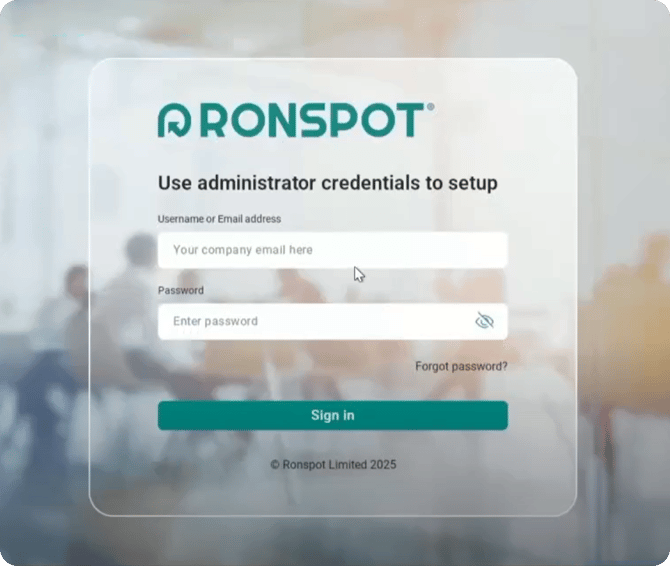
**Note:** Only administrator accounts can log in to the Ronspot Meetings app. Employee accounts are not permitted to configure the tablet.
---
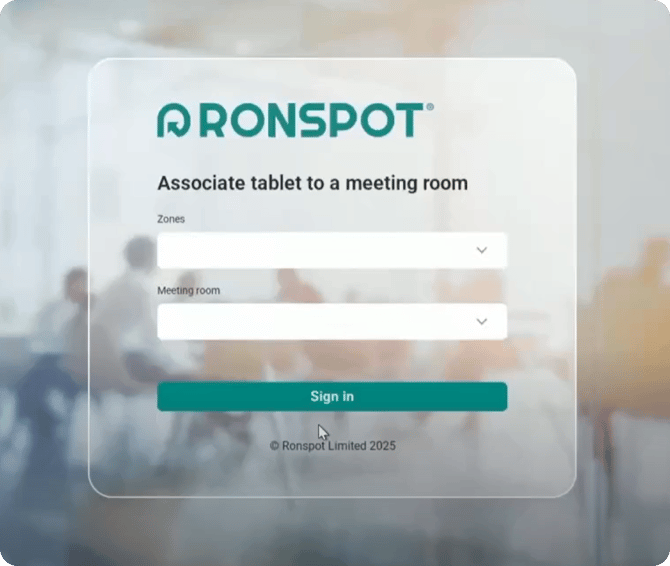
#### Step 3 – Associate the tablet with a meeting room
1. Select the zone where the meeting room is located
2. Choose the meeting room from the dropdown list
3. Tap `Sign-in` to confirm
---
#### Step 4 – Enable screen always on
1. Enable developer mode on your tablet
1. Locate the string labeled "Build number" and tap it rapidly seven times. You will then see a toast notification stating, "You are now a developer!".
2. After that navigate to the developer options.
3. The location of the settings option for both of the previous instructions vary based on equipment manufacturers redesign the settings hierarchy, see table at the end of this section.
2. In the top-right area of the developer options, tap the search icon and search for **Stay awake**.
3. Toggle **Stay awake** to on.
| **Manufacturer** | **Path to find "Build Number"** | **Path to "Developer Options"** |
| --- | --- | --- |
| Google Pixel | Settings \> About phone | Settings \> System \> Developer options |
| Motorola | Settings \> About phone | Settings \> System \> Developer options |
| Samsung | Settings \> About phone \> Software information | Settings \> Developer options (at the very bottom) |
| Xiaomi | Settings \> About phone \> Tap "OS Version" or "MIUI version" 7 times instead | Settings \> Additional settings \> Developer options |
| Redmi | Settings \> About phone \> Tap "OS Version" or "MIUI version" 7 times instead | Settings \> Additional settings \> Developer options |
| Poco | Settings \> About phone \> Tap "OS Version" or "MIUI version" 7 times instead | Settings \> Additional settings \> Developer options |
| OnePlus | Settings \> About device \> Version | Settings \> Additional settings (or System settings) \> Developer options |
| Oppo | Settings \> About device \> Version | Settings \> Additional settings (or System settings) \> Developer options |
| Realme | Settings \> About device \> Version | Settings \> Additional settings (or System settings) \> Developer options |
---
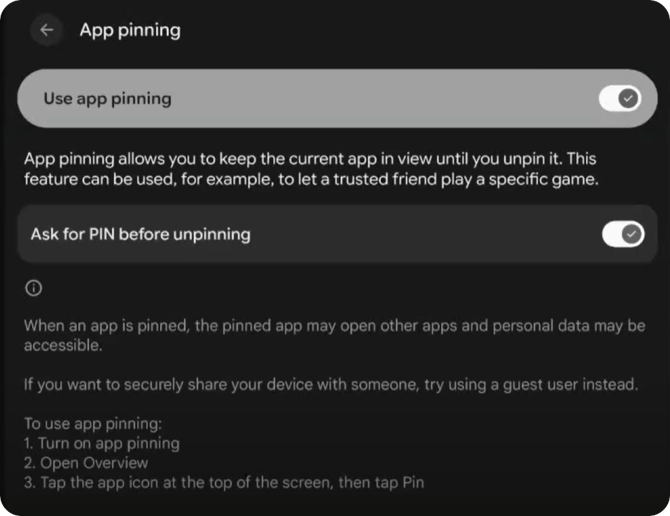
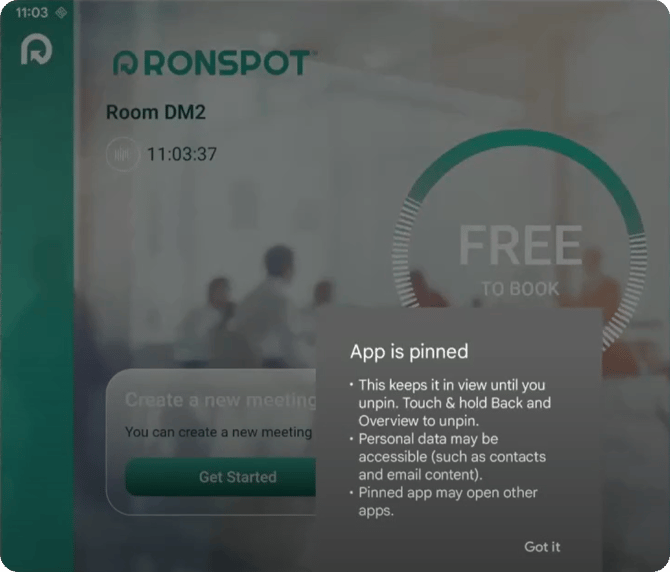
#### Step 5 – Lock the Ronspot Meetings app
To prevent users from exiting the Ronspot Meetings app, you can enable app pinning using your tablet’s built-in settings.
##### ****
##### **App pinning by manufacturer:**
| **Manufacturer** | **Navigation path** |
| --- | --- |
| Google | Settings \> Security & privacy \> More security settings \> Screen pinning |
| Motorola | Settings \> Security \> Screen pinning |
| Nokia | Settings \> Security \> Screen pinning |
| OnePlus | Settings \> Security & privacy \>More security settings \> Screen pinning |
| Oppo | Settings \> Security \> App pinning |
| Realme | Settings \> Privacy \> App pinning |
| Samsung | Settings \> Security and privacy \>More security settings \> Pin windows |
| Vivo | Settings \> Security & privacy \> Screen pinning |
| Xiaomi | Settings \> Privacy & security \> App pinning |
If your tablet is not listed below, refer to the manufacturer’s documentation. If app pinning is not supported, we recommend using a tablet that supports this feature.
---
Step 6 – Unlock the Ronspot Meetings app (optional)
To exit the pinned app, press the **Back (triangle)** and **Overview (square)** buttons simultaneously. You will be prompted to unlock the device using your PIN or fingerprint.
---
#### Conclusion
Your Ronspot Meetings app is now ready to use.
If you need further help, please reach out at support@ronspotflexwork.com.
| **Manufacturer** | **Navigation path** |
| --- | --- |
| Google | Settings \> Security & privacy \> More security settings \> Screen pinning |
| Motorola | Settings \> Security \> Screen pinning |
| Nokia | Settings \> Security \> Screen pinning |
| OnePlus | Settings \> Security & privacy \>More security settings \> Screen pinning |
| Oppo | Settings \> Security \> App pinning |
| Realme | Settings \> Privacy \> App pinning |
| Samsung | Settings \> Security and privacy \>More security settings \> Pin windows |
| Vivo | Settings \> Security & privacy \> Screen pinning |
| Xiaomi | Settings \> Privacy & security \> App pinning |
If your tablet is not listed below, refer to the manufacturer’s documentation. If app pinning is not supported, we recommend using a tablet that supports this feature.
---
Step 6 – Unlock the Ronspot Meetings app (optional)
To exit the pinned app, press the **Back (triangle)** and **Overview (square)** buttons simultaneously. You will be prompted to unlock the device using your PIN or fingerprint.
---
#### Conclusion
Your Ronspot Meetings app is now ready to use.
If you need further help, please reach out at support@ronspotflexwork.com.
| **Manufacturer** | **Navigation path** |
| --- | --- |
| Google | Settings \> Security & privacy \> More security settings \> Screen pinning |
| Motorola | Settings \> Security \> Screen pinning |
| Nokia | Settings \> Security \> Screen pinning |
| OnePlus | Settings \> Security & privacy \>More security settings \> Screen pinning |
| Oppo | Settings \> Security \> App pinning |
| Realme | Settings \> Privacy \> App pinning |
| Samsung | Settings \> Security and privacy \>More security settings \> Pin windows |
| Vivo | Settings \> Security & privacy \> Screen pinning |
| Xiaomi | Settings \> Privacy & security \> App pinning |
If your tablet is not listed below, refer to the manufacturer’s documentation. If app pinning is not supported, we recommend using a tablet that supports this feature.
---
Step 6 – Unlock the Ronspot Meetings app (optional)
To exit the pinned app, press the **Back (triangle)** and **Overview (square)** buttons simultaneously. You will be prompted to unlock the device using your PIN or fingerprint.
---
#### Conclusion
Your Ronspot Meetings app is now ready to use.
If you need further help, please reach out at support@ronspotflexwork.com.
- [User Guide](https://help.ronspot.co/user-guide?hsLang=en#main-content)
- [Quick Start](https://help.ronspot.co/user-guide?hsLang=en#quick-start)
- [Core Features](https://help.ronspot.co/user-guide?hsLang=en#core-features)
- [Advanced Features](https://help.ronspot.co/user-guide?hsLang=en#advanced-features)
- [Meetings](https://help.ronspot.co/user-guide?hsLang=en#meetings)
- [Troubleshooting](https://help.ronspot.co/user-guide?hsLang=en#troubleshooting)
- [Account Setup](https://help.ronspot.co/account-setup?hsLang=en#main-content)
- [Map Configuration](https://help.ronspot.co/account-setup?hsLang=en#map-configuration)
- [Space Management](https://help.ronspot.co/account-setup?hsLang=en#space-management)
- [Account Customisation](https://help.ronspot.co/account-setup?hsLang=en#account-customisation)
- [User Management](https://help.ronspot.co/user-management?hsLang=en#main-content)
- [User Authentication](https://help.ronspot.co/user-management?hsLang=en#user-authentication)
- [Managing Users](https://help.ronspot.co/user-management?hsLang=en#managing-users)
- [User Permissions](https://help.ronspot.co/user-management?hsLang=en#user-permissions)
- [Rules & Priorities](https://help.ronspot.co/rules-priorities?hsLang=en#main-content)
- [Confirmation & Auto-Cancellation](https://help.ronspot.co/rules-priorities?hsLang=en#confirmation-auto-cancellation)
- [Demand Management](https://help.ronspot.co/rules-priorities?hsLang=en#demand-management)
- [Priorities & Restrictions](https://help.ronspot.co/rules-priorities?hsLang=en#priorities-restrictions)
- [Integrations](https://help.ronspot.co/integrations?hsLang=en#main-content)
- [Single Sign-On](https://help.ronspot.co/integrations?hsLang=en#single-sign-on)
- [HR Systems](https://help.ronspot.co/integrations?hsLang=en#hr-systems)
- [Meeting Sync](https://help.ronspot.co/integrations?hsLang=en#meeting-sync)
- [Access Control Systems](https://help.ronspot.co/integrations?hsLang=en#access-control-systems)
- [Workplace Sensors](https://help.ronspot.co/integrations?hsLang=en#workplace-sensors)
[](https://ronspotflexwork.com/)
Download the user guide
**[Parking user guide](https://ronspotflexwork.com/ronspot-parking-user-guide-en.pdf)[Desk user guide](https://ronspotflexwork.com/ronspot-desk-user-guide-en.pdf) [M](https://ronspotflexwork.com/ronspot-meeting-user-guide-en.pdf)[eeting user guide](https://ronspotflexwork.com/ronspot-meeting-user-guide-en.pdf)**
Download the app
[](https://apps.apple.com/ie/app/ronspot-desk-parking-mgt/id1290760801) [](https://play.google.com/store/apps/details?id=ie.jemstone.ronspot&hl=en)
Ronspot Ltd, ATU iHubs, Dublin Road, Galway, H91 DCH9, Ireland — Ronspot® is a registered trademark. Copyright © 2025 Ronspot Ltd. All Rights Reserved.