
Integrating Connected Inventions sensors with Ronspot allows your workspace to automatically detect presence and occupancy using Sigfox-connected devices. This setup enhances automation, improves accuracy, and streamlines space management. In this guide, you’ll learn how to connect your sensors and configure all necessary components so Ronspot can receive and display live sensor data.
Prerequisites
-
You must have an active Disruptive Technologies account.
-
You must have an active Sigfox account.
-
You must have Connected Inventions sensors installed in your workspace.
-
Your sensors must be registered in Disruptive Technologies before integrating with Ronspot.
-
Your sensors must be registered in Sigfox before integrating with Ronspot.
Step 1: Log in to your Sigfox account
-
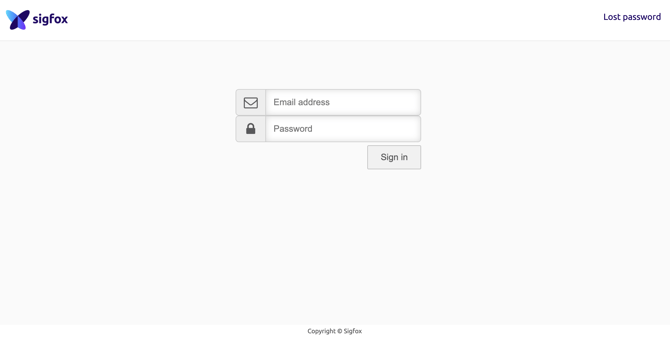
Open your web browser and navigate to the Sigfox account
-
Enter your credentials to log in
Step 2: Select your group
-
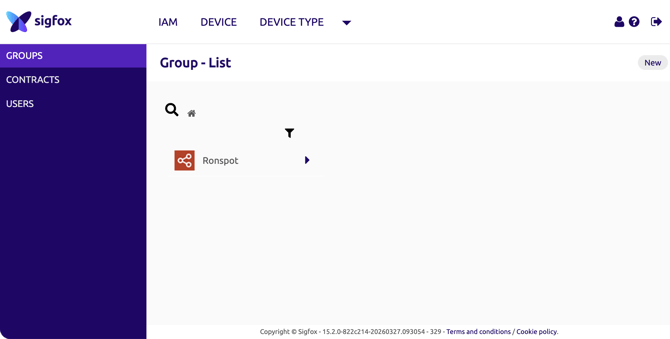
Navigate to the Group List
-
From the list, select the appropriate group
Step 3: Create a new API access
-
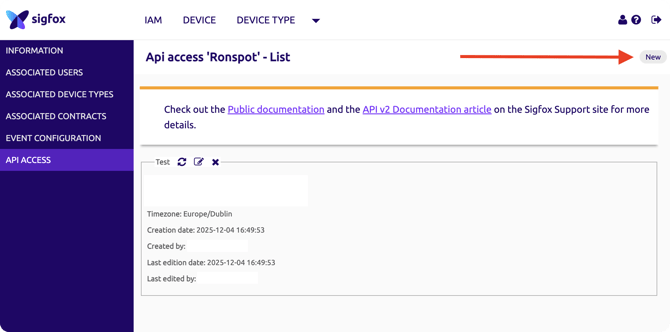
You will be redirected to the group information page
-
In the left-hand sidebar, click
API Access -
In the top-right corner, click
Newto create a new API access
Step 4: Register the API access
-
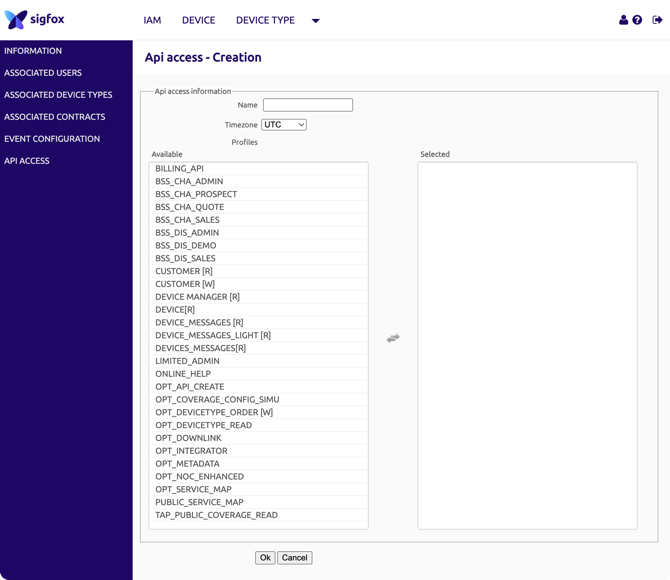
Fill out the required fields:
-
Name: Enter the name of the API access (e.g., Ronspot)
-
Timezone: Select your country and city
-
Profiles: Select DEVICE MANAGER [W]
-
-
Click
Registerto create the access
Step 5: Copy the API login and password
-
A login and password will be automatically generated
-
Copy both values and store them in a safe place
You will need this information later in Step 9
Step 6: Log in to the Ronspot admin portal
-
Open your web browser and navigate to the Ronspot admin portal
-
Enter your credentials to log in
Step 7: Connect with Ronspot Support
In order to complete the integration within Ronspot, email support@ronspotflexwork.com. Once they have completed the integration proceed to next step.
Step 8: Navigate to Spaces > Desks
-
Go to
Spaces > Desks
Step 9: Link sensors to desks
-
Select a desk in the list
-
Click the desk name (first column) or the pencil icon in the Actions column to open the sidebar
-
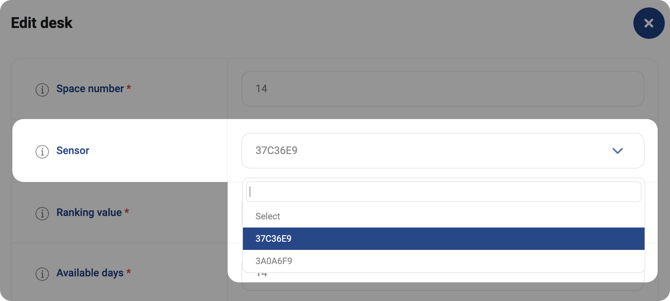
In the Sensor dropdown, select the sensor assigned to that desk
-
Click
Update -
Repeat for each desk that requires a sensor
Step 10: Integration complete
-
Once all the desks are associated with a sensor, then the integration is complete. Sensor data will start to automatically flow into the Ronspot database and the information can be viewed in the Reports section
If you need further help, please reach out at support@ronspotflexwork.com