---
title: How to connect Equinsa to Ronspot
description: Equinsa Parking is an access management solution that validates vehicle or cardholder entry. For each validation request, Equinsa must initiate an API call to Ronspot to verify booking eligibility.
---
[Skip to content](https://help.ronspot.co/how-to-connect-equinsa-to-ronspot#main-content)
[Open support ticket](https://help.ronspot.co/kb-tickets/new?hsLang=en) [Track my tickets](https://ronspot.co/customer-portal?hsLang=en)
[](https://ronspotflexwork.com/)
- [Platform](https://ronspotflexwork.com/platform/)
Show submenu for Platform
- [Parking Management System](https://ronspotflexwork.com/office-parking-management/)
- [Desk Booking System](https://ronspotflexwork.com/desk-booking-system/)
- [Meeting Room Booking System](https://ronspotflexwork.com/meeting-room-booking-system/)
- [Workplace Analytics](https://ronspotflexwork.com/workplace-analytics/)
- [Integrations](https://ronspotflexwork.com/integrations/)
- Solutions
Show submenu for Solutions
- [Employee Experience](https://ronspotflexwork.com/employee-experience/)
- [Workplace Operations](https://ronspotflexwork.com/workplace-operations/)
- [Space Planning](https://ronspotflexwork.com/space-management/)
- [Customer Case Studies](https://ronspotflexwork.com/case-studies/)
- [Pricing](https://ronspotflexwork.com/pricing/)
- Resources
Show submenu for Resources
- [Help Centre](https://help.ronspot.co/)
- [Product Updates](https://ronspotflexwork.com/feature-releases/)
- [System Status](https://ronspotflexwork.com/system-status/)
- [Contact](https://ronspotflexwork.com/contact-us/)
Open main navigation
Close main navigation
- [Platform](https://ronspotflexwork.com/platform/)
Show submenu for Platform
- [Parking Management System](https://ronspotflexwork.com/office-parking-management/)
- [Desk Booking System](https://ronspotflexwork.com/desk-booking-system/)
- [Meeting Room Booking System](https://ronspotflexwork.com/meeting-room-booking-system/)
- [Workplace Analytics](https://ronspotflexwork.com/workplace-analytics/)
- [Integrations](https://ronspotflexwork.com/integrations/)
- Solutions
Show submenu for Solutions
- [Employee Experience](https://ronspotflexwork.com/employee-experience/)
- [Workplace Operations](https://ronspotflexwork.com/workplace-operations/)
- [Space Planning](https://ronspotflexwork.com/space-management/)
- [Customer Case Studies](https://ronspotflexwork.com/case-studies/)
- [Pricing](https://ronspotflexwork.com/pricing/)
- Resources
Show submenu for Resources
- [Help Centre](https://help.ronspot.co/)
- [Product Updates](https://ronspotflexwork.com/feature-releases/)
- [System Status](https://ronspotflexwork.com/system-status/)
- [Contact](https://ronspotflexwork.com/contact-us/)
- [Open support ticket](https://help.ronspot.co/kb-tickets/new)
- [Track my tickets](https://ronspot.co/customer-portal)
- [Book a Demo](https://ronspotflexwork.com/book-a-demo/)
[Book a Demo](https://ronspotflexwork.com/book-a-demo/)
Need help with Ronspot?
- There are no suggestions because the search field is empty.
1. [Help Centre](https://help.ronspot.co/?hsLang=en)
2. [Integrations](https://help.ronspot.co/integrations?hsLang=en)
3. [Access Control Systems](https://help.ronspot.co/integrations?hsLang=en#access-control-systems)
December 9, 2025
# How to connect Equinsa to Ronspot
## This guide provides detailed, step-by-step instructions for integrating the Equinsa Parking access control system with Ronspot.
---
The Ronspot–Equinsa integration provides a real-time access-control decision service that enables barriers, gates, or controlled entry points managed by Equinsa to validate whether a vehicle or cardholder is authorised to enter or exit a car park. In this architecture, Equinsa always acts as the initiating system. When a vehicle registration or card number is presented at a lane, the Equinsa controller sends a live request to Ronspot. Ronspot then evaluates the request against current booking data, user permissions and space availability, and returns an immediate authorisation decision.
In effect, Equinsa handles the on-site hardware and event detection, while Ronspot functions as the central authorisation engine. No data is pushed from Ronspot to Equinsa; all validation is performed at the moment of access, ensuring that any booking changes, cancellations, releases or updates are reflected instantly. This provides a secure, accurate and highly responsive method of controlling car park access based on Ronspot’s booking logic.
The endpoints described in this documentation allow Equinsa to submit registration or card-access queries and receive structured responses that determine whether access should be granted. This ensures seamless integration between the physical access equipment and Ronspot’s booking management platform.
### Prerequisites
Before setting up the integration, ensure you have:
- An active **Equinsa account and subscription**
- A **technical contact at Equinsa** who can configure API calls to Ronspot for booking validation
#### Step 1: Log in to Ronspot admin panel
- Sign in to your **[Ronspot admin panel](https://admin.ronspot.ie/)** using your administrator credentials.
---
#### Step 2: Navigate to Account \> Integrations
- In the left-hand menu, go to `Account > Integrations`
---
#### Step 3: Add a new integration
1. Click `Add integration` button at the top of the page.
2. In the pop-up window, choose `Ronspot API` as the integration type.
---
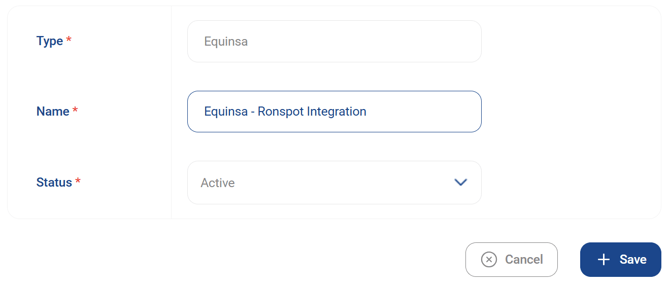
#### Step 4: Configure the Equinsa integration
- You will be prompted to provide the following:
- **Name** : Enter a name for the integration (e.g., *Equinsa– Ronspot Integration*)
- **Status**: Set to **Active**
- Press `Save`
---
#### Step 5: Associate your Ronspot zones
Next, you will specify which Ronspot zones should use the Equinsa integration.
- In the list of integrations, find your newly created Equinsa integration.
- Click the **camera icon** in the `Actions` column to manage zone associations.

---
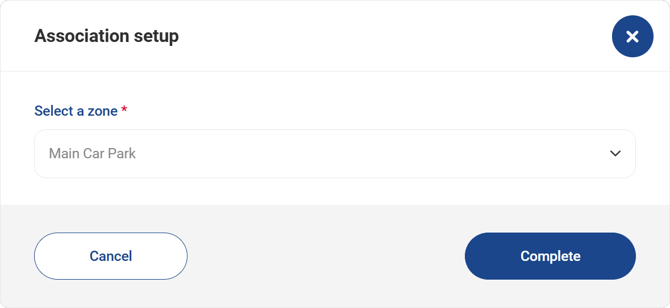
#### Step 6: Add an association
- Click the `Add association` button at the top of the page.
- Select the **Ronspot zone** you want to link.
- Click `Complete` to save the association.
- Repeat this process to add more zone associations as needed.
---
#### Step 7: Copy the API access key
- Go back to the integrations list.
- Locate the Equinsa integration.
- Click the **clipboard icon** in the **`Actions`** column to copy your API access key.
You will need to send this to Equinsa.

---
#### Step 8: Provide the following details to Equinsa
Share the information below with your Equinsa technical contact so they can configure their system to call Ronspot’s validation endpoints.
##### **1 - API Access Key**
- Your unique API access key (copied in Step 7)
##### **2 - Endpoint: Registration Access**
Used to validate access based on **vehicle registration number**.
- **Method:** POST
- **URL:**
- ```
https://newapi.ronspot.ie/registration_access
```
- **Headers**
- ```
Content-Type: application/jsonapikey: Your API key
```
- **Parameters**
- **apikey** (required): Your API key
- **parkingID** (required): Parking facility ID — use 100 for testing
- **registration** (required): Vehicle registration number
- **lane** (required): "entry" or "exit"
- **time** (optional): Timestamp; if omitted, the server applies the current time
- **Example of JSON request**:
- ```
{ "apikey":"288d4022d050f98bc4320264d1b3f371", "parkingID":"100", "registration": "EQY123", "lane":"entry", "time":""}
```
- **Example of JSON response:**
- ```
{ "registration_access": { "registration": "EQY123" }, "time": 1703245186, "lane": "entry", "result": { "know": true, // The car registration exists in the Ronspot database "allowed": false, // The employee currently has no active booking "name": "John Doe", // The employee’s name associated with the registration "space_number": null // No space number because there is no active booking }}
```
##### **3 - Endpoint: Swipe Card Access**
Used to validate parking access based on an **employee’s swipe card number**.
- **Method:** POST
- **URL:**
- ```
https://newapi.ronspot.ie/card_access
```
- **Headers**
- ```
Content-Type: application/jsonapikey: Your API key
```
- **Parameters**
- **apikey** (required): Your API key
- **parkingID** (required): Parking facility ID — use 100 for testing
- **card** (required): Cardholder’s alphanumeric swipe card number
- **lane** (required): "entry" or "exit"
- **time** (optional): Timestamp; if omitted, the server applies the current time
- **Example of JSON request** :
- ```
{ "apikey":"288d4022d050f98bc4320264d1b3f371", "parkingID":"100", "card": "ABCD12345", "lane":"entry", "time":""}
```
- **Example of JSON response:**
- ```
{ "card_access": { "card": "ABCD12345" }, "time": 1703245186, "lane": "entry", "result": { "know": true, // The car registration exists in the Ronspot database "allowed": false, // The employee currently has no active booking "name": "Jane Doe", // The employee’s name associated with the card "space_number": null // No space number because there is no active booking }}
```
If you need further help, please reach out at [support@ronspotflexwork.com](mailto:support@ronspotflexwork.com)
- [User Guide](https://help.ronspot.co/user-guide?hsLang=en#main-content)
- [Quick Start](https://help.ronspot.co/user-guide?hsLang=en#quick-start)
- [Core Features](https://help.ronspot.co/user-guide?hsLang=en#core-features)
- [Advanced Features](https://help.ronspot.co/user-guide?hsLang=en#advanced-features)
- [Meetings](https://help.ronspot.co/user-guide?hsLang=en#meetings)
- [Troubleshooting](https://help.ronspot.co/user-guide?hsLang=en#troubleshooting)
- [Account Setup](https://help.ronspot.co/account-setup?hsLang=en#main-content)
- [Map Configuration](https://help.ronspot.co/account-setup?hsLang=en#map-configuration)
- [Space Management](https://help.ronspot.co/account-setup?hsLang=en#space-management)
- [Account Customisation](https://help.ronspot.co/account-setup?hsLang=en#account-customisation)
- [User Management](https://help.ronspot.co/user-management?hsLang=en#main-content)
- [User Authentication](https://help.ronspot.co/user-management?hsLang=en#user-authentication)
- [Managing Users](https://help.ronspot.co/user-management?hsLang=en#managing-users)
- [User Permissions](https://help.ronspot.co/user-management?hsLang=en#user-permissions)
- [Rules & Priorities](https://help.ronspot.co/rules-priorities?hsLang=en#main-content)
- [Confirmation & Auto-Cancellation](https://help.ronspot.co/rules-priorities?hsLang=en#confirmation-auto-cancellation)
- [Demand Management](https://help.ronspot.co/rules-priorities?hsLang=en#demand-management)
- [Priorities & Restrictions](https://help.ronspot.co/rules-priorities?hsLang=en#priorities-restrictions)
- [Integrations](https://help.ronspot.co/integrations?hsLang=en#main-content)
- [Single Sign-On](https://help.ronspot.co/integrations?hsLang=en#single-sign-on)
- [HR Systems](https://help.ronspot.co/integrations?hsLang=en#hr-systems)
- [Meeting Sync](https://help.ronspot.co/integrations?hsLang=en#meeting-sync)
- [Access Control Systems](https://help.ronspot.co/integrations?hsLang=en#access-control-systems)
- [Workplace Sensors](https://help.ronspot.co/integrations?hsLang=en#workplace-sensors)
[](https://ronspotflexwork.com/)
Download the user guide
**[Parking user guide](https://ronspotflexwork.com/ronspot-parking-user-guide-en.pdf)[Desk user guide](https://ronspotflexwork.com/ronspot-desk-user-guide-en.pdf) [M](https://ronspotflexwork.com/ronspot-meeting-user-guide-en.pdf)[eeting user guide](https://ronspotflexwork.com/ronspot-meeting-user-guide-en.pdf)**
Download the app
[](https://apps.apple.com/ie/app/ronspot-desk-parking-mgt/id1290760801) [](https://play.google.com/store/apps/details?id=ie.jemstone.ronspot&hl=en)
Ronspot Ltd, ATU iHubs, Dublin Road, Galway, H91 DCH9, Ireland — Ronspot® is a registered trademark. Copyright © 2025 Ronspot Ltd. All Rights Reserved.