---
title: How to connect to the Ronspot API
description: The Ronspot REST API provides a real-time access-control decision service that enables barriers, gates, or controlled entry points to validate whether a vehicle or cardholder is authorised to enter a car park.
---
[Skip to content](https://help.ronspot.co/how-to-connect-to-ronspot-rest-api#main-content)
[Open support ticket](https://help.ronspot.co/kb-tickets/new?hsLang=en) [Track my tickets](https://ronspot.co/customer-portal?hsLang=en)
[](https://ronspotflexwork.com/)
- [Platform](https://ronspotflexwork.com/platform/)
Show submenu for Platform
- [Parking Management System](https://ronspotflexwork.com/office-parking-management/)
- [Desk Booking System](https://ronspotflexwork.com/desk-booking-system/)
- [Meeting Room Booking System](https://ronspotflexwork.com/meeting-room-booking-system/)
- [Workplace Analytics](https://ronspotflexwork.com/workplace-analytics/)
- [Integrations](https://ronspotflexwork.com/integrations/)
- Solutions
Show submenu for Solutions
- [Employee Experience](https://ronspotflexwork.com/employee-experience/)
- [Workplace Operations](https://ronspotflexwork.com/workplace-operations/)
- [Space Planning](https://ronspotflexwork.com/space-management/)
- [Customer Case Studies](https://ronspotflexwork.com/case-studies/)
- [Pricing](https://ronspotflexwork.com/pricing/)
- Resources
Show submenu for Resources
- [Help Centre](https://help.ronspot.co/)
- [Product Updates](https://ronspotflexwork.com/feature-releases/)
- [System Status](https://ronspotflexwork.com/system-status/)
- [Contact](https://ronspotflexwork.com/contact-us/)
Open main navigation
Close main navigation
- [Platform](https://ronspotflexwork.com/platform/)
Show submenu for Platform
- [Parking Management System](https://ronspotflexwork.com/office-parking-management/)
- [Desk Booking System](https://ronspotflexwork.com/desk-booking-system/)
- [Meeting Room Booking System](https://ronspotflexwork.com/meeting-room-booking-system/)
- [Workplace Analytics](https://ronspotflexwork.com/workplace-analytics/)
- [Integrations](https://ronspotflexwork.com/integrations/)
- Solutions
Show submenu for Solutions
- [Employee Experience](https://ronspotflexwork.com/employee-experience/)
- [Workplace Operations](https://ronspotflexwork.com/workplace-operations/)
- [Space Planning](https://ronspotflexwork.com/space-management/)
- [Customer Case Studies](https://ronspotflexwork.com/case-studies/)
- [Pricing](https://ronspotflexwork.com/pricing/)
- Resources
Show submenu for Resources
- [Help Centre](https://help.ronspot.co/)
- [Product Updates](https://ronspotflexwork.com/feature-releases/)
- [System Status](https://ronspotflexwork.com/system-status/)
- [Contact](https://ronspotflexwork.com/contact-us/)
- [Open support ticket](https://help.ronspot.co/kb-tickets/new)
- [Track my tickets](https://ronspot.co/customer-portal)
- [Book a Demo](https://ronspotflexwork.com/book-a-demo/)
[Book a Demo](https://ronspotflexwork.com/book-a-demo/)
Need help with Ronspot?
- There are no suggestions because the search field is empty.
1. [Help Centre](https://help.ronspot.co/?hsLang=en)
2. [Integrations](https://help.ronspot.co/integrations?hsLang=en)
3. [Access Control Systems](https://help.ronspot.co/integrations?hsLang=en#access-control-systems)
April 2, 2026
# How to connect to the Ronspot API
## This guide provides detailed, step-by-step instructions for integrating our REST API with your parking access control system.
---
### Table of contents
> [1. Introduction](https://help.ronspot.co/how-to-connect-to-ronspot-rest-api#introduction)
>
> [2. Prerequisites](https://help.ronspot.co/how-to-connect-to-ronspot-rest-api#prerequisites)
>
> [3. Create access to the Ronspot REST API](https://help.ronspot.co/how-to-connect-to-ronspot-rest-api#ronspot-api)
>
> [4. Authorisation](https://help.ronspot.co/how-to-connect-to-ronspot-rest-api#authorisation)
>
> [5. Endpoint: Registration access](https://help.ronspot.co/how-to-connect-to-ronspot-rest-api#registration-access)
>
> [6. Endpoint: Swipe card access](https://help.ronspot.co/how-to-connect-to-ronspot-rest-api#swipe-card-access)
### 1. Introduction
Our REST API provides a real-time access-control decision service that enables barriers, gates, or controlled entry points to validate whether a vehicle or cardholder is authorised to enter a car park. In this architecture, the access-control system always acts as the initiating system. When a vehicle registration or card number is presented at a lane, the controller sends a live request to the Ronspot REST API. Ronspot then evaluates the request against current booking data, user permissions and space availability, and returns an immediate authorisation decision.
The endpoints described in this documentation allow the access-control system to submit registration or card-access queries and receive structured responses that determine whether access should be granted. This ensures seamless integration between the physical access equipment and Ronspot’s booking management platform.
### 2. Prerequisites
Before setting up the integration, ensure you have:
- An IT technician who can configure API calls to the Ronspot REST API for booking validation.
### **3. Create access to the Ronspot REST API**
#### Step 1: Log in to Ronspot admin panel
- Sign in to your **[Ronspot admin panel](https://admin.ronspot.ie/)** using your administrator credentials.
---
#### Step 2: Navigate to Account \> Integrations
- In the left-hand menu, go to `Account > Integrations`
---
#### Step 3: Add a new integration
1. Click `Add integration` button at the top of the page.
2. In the pop-up window, choose `Ronspot REST API` as the integration type.
---
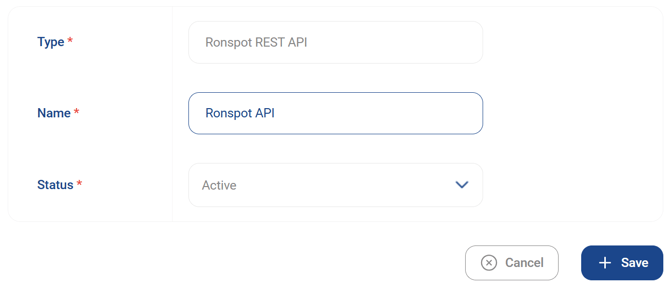
#### Step 4: Configure the Ronspot REST API integration
- You will be prompted to provide the following:
- **Name** : Enter a name for the integration (e.g., *Ronspot API*)
- **Status**: Set to **Active**
- Press `Save`
---
#### Step 5: Associate your Ronspot zones
Next, you will specify which Ronspot zones should use the Ronspot REST API.
- In the list of integrations, find your newly created Ronspot REST API.
- Click the **camera icon** in the `Actions` column to manage zone associations.

---
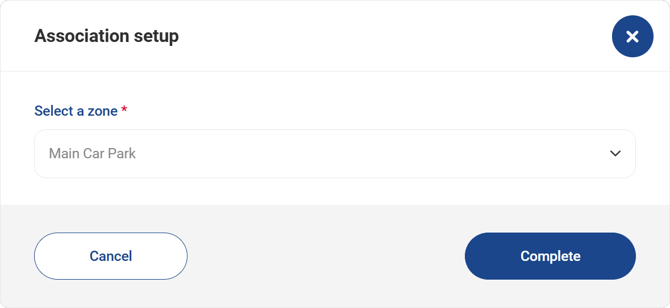
#### Step 6: Add an association
- Click the `Add association` button at the top of the page.
- Select the **Ronspot zone** you want to link.
- Click `Complete` to save the association.
- Repeat this process to add more zone associations as needed.
---
#### Step 7: Copy the API access key
- Go back to the integrations list.
- Locate the REST API integration.
- Click the **clipboard icon** in the **`Actions`** column to copy your API access key.

---
#### Step 8: Make API calls to the Ronspot REST API
Share the information below with your IT team so they can configure their system to call Ronspot’s validation endpoints.
### 4. Authorisation
- Select **“Basic Auth”** as the authentication method.
- To obtain your credentials, please contact your designated Ronspot representative, who will provide you with the required **username** and **password**.
### 5. Endpoint: Registration access
Used to validate access based on **vehicle registration number**.
- **Method:** POST
- **URL:**
- ```
https://newapi.ronspot.ie/registration_access
```
- **Headers**
- ```
Content-Type: application/jsonapikey: Your API key
```
- **Parameters**
- **apikey** (required): Your API key
- **parkingID** (required): The ID of the parking facility. Use **100** for testing purposes. For live use, select the correct **ZoneID** for the relevant car park. You can find the **ZoneID** in the Admin Panel by navigating to **Spaces → Zones & Maps**. Locate the appropriate parking zone and note its **ZoneID**. If the **ZoneID** column is not visible, right-click on the table header and enable it by selecting the **ZoneID** checkbox.
- **registration** (required): Vehicle registration number
- **lane** (required): "entry" or "exit"
- **time** (optional): Timestamp; if omitted, the server applies the current time
- **Example of JSON request**:
- ```
{ "apikey":"288d4022d050f98bc4320264d1b3f371", "parkingID":"100", "registration": "EQY123", "lane":"entry", "time":""}
```
- **Example of JSON response:**
- ```
{ "registration_access": { "registration": "EQY123" }, "time": 1703245186, "lane": "entry", "result": { "know": true, // The car registration exists in the Ronspot database "allowed": false, // The employee currently has no active booking "name": "John Doe", // The employee’s name associated with the registration "space_number": null // No space number because there is no active booking }}
```
### **6. Endpoint: Swipe card access**
Used to validate parking access based on an **employee’s swipe card number**.
- **Method:** POST
- **URL:**
- ```
https://newapi.ronspot.ie/card_access
```
- **Headers**
- ```
Content-Type: application/jsonapikey: Your API key
```
- **Parameters**
- **apikey** (required): Your API key
- **parkingID** (required): The ID of the parking facility. Use **100** for testing purposes. For live use, select the correct **ZoneID** for the relevant car park. You can find the **ZoneID** in the Admin Panel by navigating to **Spaces → Zones & Maps**. Locate the appropriate parking zone and note its **ZoneID**. If the **ZoneID** column is not visible, right-click on the table header and enable it by selecting the **ZoneID** checkbox.
- **card** (required): Cardholder’s alphanumeric swipe card number
- **lane** (required): "entry" or "exit"
- **time** (optional): Timestamp; if omitted, the server applies the current time
- **Example of JSON request** :
- ```
{ "apikey":"288d4022d050f98bc4320264d1b3f371", "parkingID":"100", "card": "ABCD12345", "lane":"entry", "time":""}
```
- **Example of JSON response:**
- ```
{ "card_access": { "card": "ABCD12345" }, "time": 1703245186, "lane": "entry", "result": { "know": true, // The car registration exists in the Ronspot database "allowed": false, // The employee currently has no active booking "name": "Jane Doe", // The employee’s name associated with the card "space_number": null // No space number because there is no active booking }}
```
If you need further help, please reach out at [support@ronspotflexwork.com](mailto:support@ronspotflexwork.com)
- [User Guide](https://help.ronspot.co/user-guide?hsLang=en#main-content)
- [Quick Start](https://help.ronspot.co/user-guide?hsLang=en#quick-start)
- [Core Features](https://help.ronspot.co/user-guide?hsLang=en#core-features)
- [Advanced Features](https://help.ronspot.co/user-guide?hsLang=en#advanced-features)
- [Meetings](https://help.ronspot.co/user-guide?hsLang=en#meetings)
- [Troubleshooting](https://help.ronspot.co/user-guide?hsLang=en#troubleshooting)
- [Account Setup](https://help.ronspot.co/account-setup?hsLang=en#main-content)
- [Map Configuration](https://help.ronspot.co/account-setup?hsLang=en#map-configuration)
- [Space Management](https://help.ronspot.co/account-setup?hsLang=en#space-management)
- [Account Customisation](https://help.ronspot.co/account-setup?hsLang=en#account-customisation)
- [User Management](https://help.ronspot.co/user-management?hsLang=en#main-content)
- [User Authentication](https://help.ronspot.co/user-management?hsLang=en#user-authentication)
- [Managing Users](https://help.ronspot.co/user-management?hsLang=en#managing-users)
- [User Permissions](https://help.ronspot.co/user-management?hsLang=en#user-permissions)
- [Rules & Priorities](https://help.ronspot.co/rules-priorities?hsLang=en#main-content)
- [Confirmation & Auto-Cancellation](https://help.ronspot.co/rules-priorities?hsLang=en#confirmation-auto-cancellation)
- [Demand Management](https://help.ronspot.co/rules-priorities?hsLang=en#demand-management)
- [Priorities & Restrictions](https://help.ronspot.co/rules-priorities?hsLang=en#priorities-restrictions)
- [Integrations](https://help.ronspot.co/integrations?hsLang=en#main-content)
- [Single Sign-On](https://help.ronspot.co/integrations?hsLang=en#single-sign-on)
- [HR Systems](https://help.ronspot.co/integrations?hsLang=en#hr-systems)
- [Meeting Sync](https://help.ronspot.co/integrations?hsLang=en#meeting-sync)
- [Access Control Systems](https://help.ronspot.co/integrations?hsLang=en#access-control-systems)
- [Workplace Sensors](https://help.ronspot.co/integrations?hsLang=en#workplace-sensors)
[](https://ronspotflexwork.com/)
Download the user guide
**[Parking user guide](https://ronspotflexwork.com/ronspot-parking-user-guide-en.pdf)[Desk user guide](https://ronspotflexwork.com/ronspot-desk-user-guide-en.pdf) [M](https://ronspotflexwork.com/ronspot-meeting-user-guide-en.pdf)[eeting user guide](https://ronspotflexwork.com/ronspot-meeting-user-guide-en.pdf)**
Download the app
[](https://apps.apple.com/ie/app/ronspot-desk-parking-mgt/id1290760801) [](https://play.google.com/store/apps/details?id=ie.jemstone.ronspot&hl=en)
Ronspot Ltd, ATU iHubs, Dublin Road, Galway, H91 DCH9, Ireland — Ronspot® is a registered trademark. Copyright © 2025 Ronspot Ltd. All Rights Reserved.