
Depending on your organisation’s Microsoft 365 settings, employees may be able to install Ronspot themselves, or an administrator may first need to allow the app.
Contents
- If app installation is restricted
- Install Ronspot in Microsoft Teams
- Install Ronspot in Microsoft Outlook
- Can't find or install Ronspot
1. If app installation is restricted
If your organisation restricts which apps employees can install, a Teams administrator will need to allow the new Ronspot app.
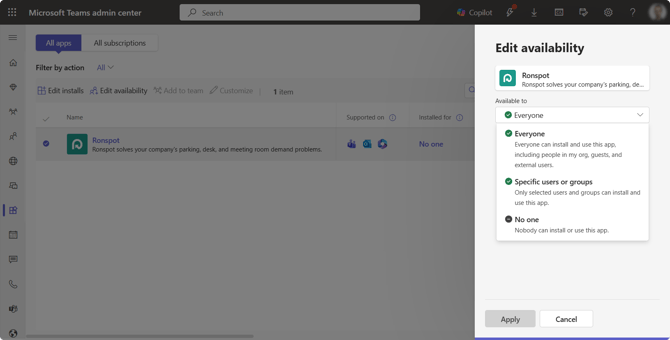
The administrator should:
- Open the Microsoft Teams Admin Center
- Go to Teams app > Manage apps
- In the search box, type Ronspot
- Select the Ronspot app and click Edit availability
- Make the app available to Everyone or Specific users or groups
- Click Apply
Note: If your organisation does not use Unified App Management, your administrator may need to repeat similar steps on the Microsoft 365 Admin Center for Outlook and Microsoft 365:
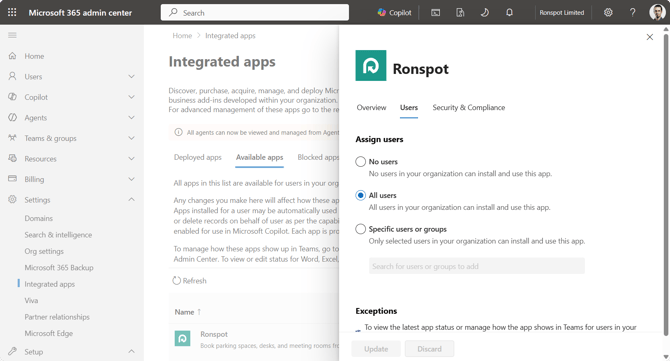
- Open the Microsoft 365 Admin Center
- Go to Settings > Integrated apps
- Open the Available apps tab
- In the search box, type Ronspot
- Click on the Ronspot app
- In the sidebar panel, go to Users
- Make the app available to All users or Specific users or groups
- Click Update
Once Ronspot has been allowed by your administrator, employees can install it.
2. Install Ronspot in Microsoft Teams
- Open Microsoft Teams
- Go to Store and search for Ronspot
- Select the Ronspot app and click Add
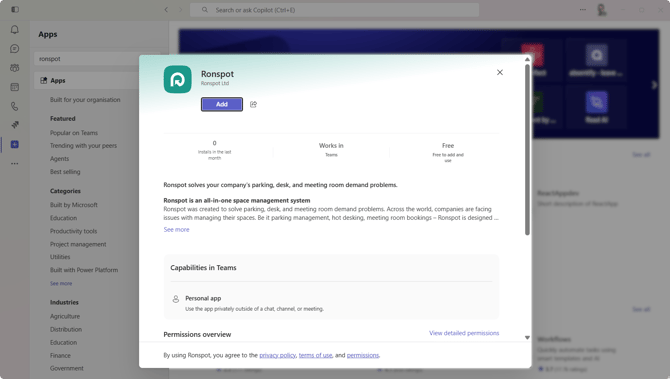
- Once installed, click Open to start using it.
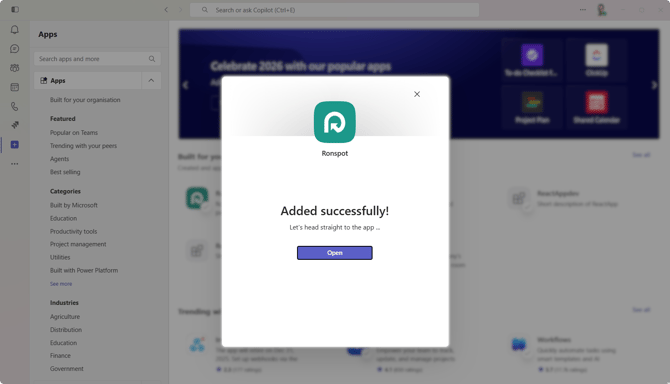
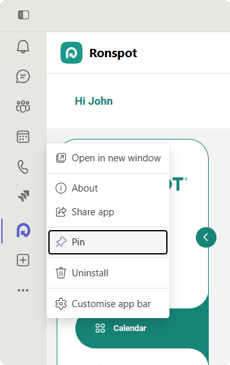
- Right click on the Ronspot icon in the left navigation bar and select Pin.
3. Install Ronspot in Microsoft Outlook
Ronspot can also be accessed directly from Microsoft Outlook.
- Open Microsoft Outlook.
- Go to Apps and search for Ronspot
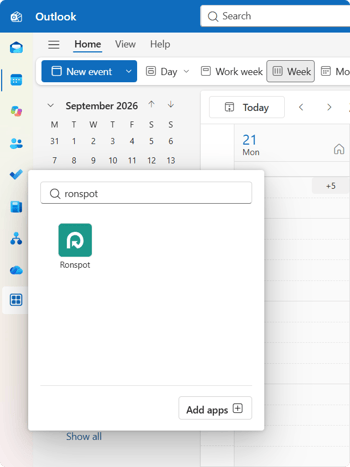
- Select Ronspot
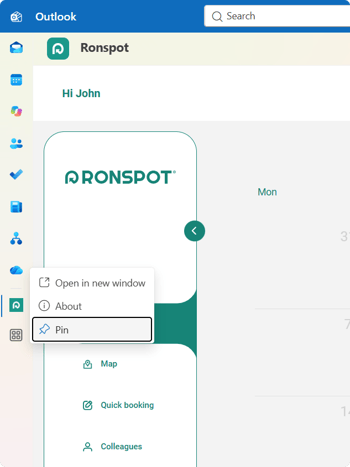
- Right click on the Ronspot icon in the left navigation bar and select Pin.
Once installed, employees can access Ronspot as part of their everyday Microsoft 365 workflow.
4. Can't find or install Ronspot?
If Ronspot doesn't appear in the search results, or you don't have the option to install it, your organisation may restrict third-party app installation.
Contact your Microsoft 365 or Teams administrator and ask them to allow the new Ronspot app for your organisation.
Once your administrator has enabled the app, return to Teams or Outlook, search for Ronspot, and click Install.