
Table of contents
Reset an employee password
Step 1: Navigate to Employees
- Log in to the Ronspot admin panel.
- Navigate to
Users > Employees.
Step 2: Locate the employee in the list
- Use the search bar or scroll through the list to find the employee whose password you want to reset.
Step 3: Click 'Reset Password'
- In the 'Actions' column, click on the
...button - Then select
Reset password
Step 4: Set a new password
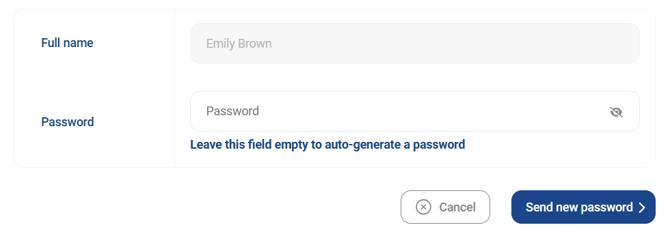
- Enter a new password, or leave the field blank to automatically generate a new one.
- Click Send new password. The employee will receive their new password via email.
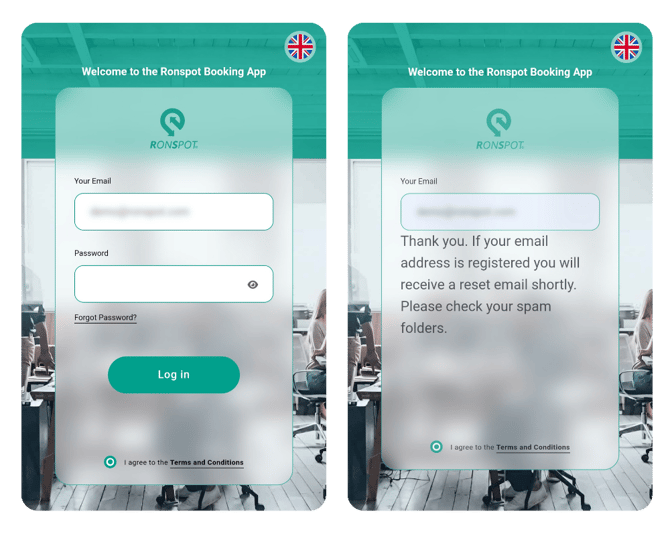
Note: Employees can reset their password themselves by clicking the Forgot password? link located under the Password field on the app login page. An email with instructions to reset their password will be sent to them.
Reset an administrator password
Step 1: Navigate to 'Administrators'
- Log in to the Ronspot admin panel.
- Navigate to
Users > Administrators.
Note: If you are logged out of the admin panel and need to reset your password, use the following link and follow the instructions on-screen.
Step 2: Locate the administrator in the list
- Find the administrator whose password you want to reset.
Step 3: Click the padlock icon
- Locate the administrator in the list.
- Click on the padlock icon.
Step 4: Send reset instructions
- Click on the
Send password reset emailbutton. Instructions will be automatically sent by email to the administrator on how to reset their password.